
The terminal must stay connected to the broker. A weak or frequently disconnecting connection can delay orders, license checks, and trade management.
IdeaVanta Trading Lab
VantaBox
A simple MetaTrader 5 user guide: installation, license setup, tested pair settings, and a clear explanation of every option.
MT5 Expert Advisor
Rule-based execution
Risk controlled
1Install the EA file
2Allow ideavanta.com
3Enable Algo Trading
4Add the EA before box time
Before installation
What VantaBox needs to run
VantaBox is an MT5 Expert Advisor. It can only manage trades while MetaTrader 5 is open, connected, and allowed to trade.
The computer must remain powered on while the EA is expected to work. If MT5 is closed, the EA cannot open, manage, or close trades.
For more reliable operation, use a VPS close to your broker server. This is especially useful if your home internet, laptop, or power supply is not stable.
Important: VantaBox does not run in the cloud by itself. It needs MT5 running on your computer or VPS during the trading session.
Installation
First setup
1
Copy the EA into MetaTrader 5
- Open MT5.
- Select File -> Open Data Folder.
- Open
MQL5 -> Experts. - Place
VantaBoxEA_v1_3.ex5in this folder. - Restart MT5 or click Refresh in the Navigator window.
2
Allow the license check
The EA needs this permission to check your trading account. Without it, a new session cannot start.
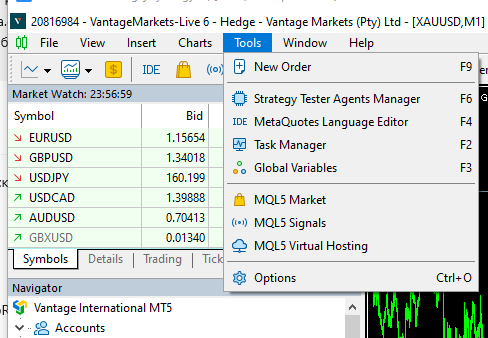
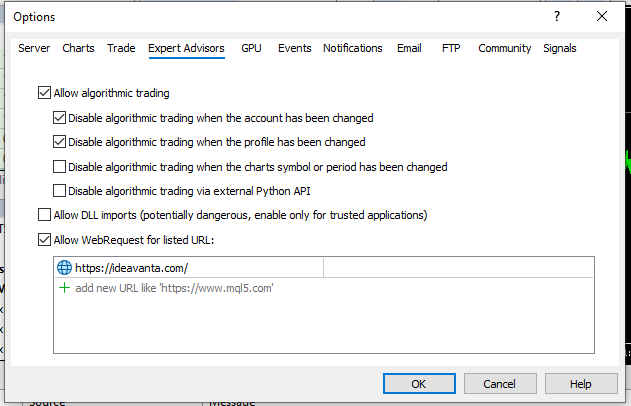
Address to add:
https://ideavanta.com
- Open Tools -> Options, or press
Ctrl+O. - Open the Expert Advisors tab.
- Enable Allow WebRequest for listed URL.
- Add this exact address:
https://ideavanta.com. - Click OK.
Important: include
https://. Do not add spaces or extra characters.3
Enable automated trading
- Enable Algo Trading on the top MT5 toolbar.
- Drag VantaBox EA from Navigator onto the required pair chart.
- In the Common tab, allow algorithmic trading.
- Check the settings and click OK.
If Algo Trading is disabled: Experts will show
auto trading disabled by client, and the EA will not place orders.4
Add the EA before the box starts
Attach VantaBox EA before RangeStart. For example, if the box starts at 03:00, the EA must already be on the chart before 03:00 broker server time.
If the EA is added after the box starts, or settings are changed while the box is forming, the current box is cleared and the EA waits for the next trading day.
License
How to check the license
Successful check
After the EA is added to a chart, it checks the trading account number. A successful check shows:
License: OK / allowed
A matching message also appears in the Experts tab. This means the account is allowed and the EA can start a new trading session.
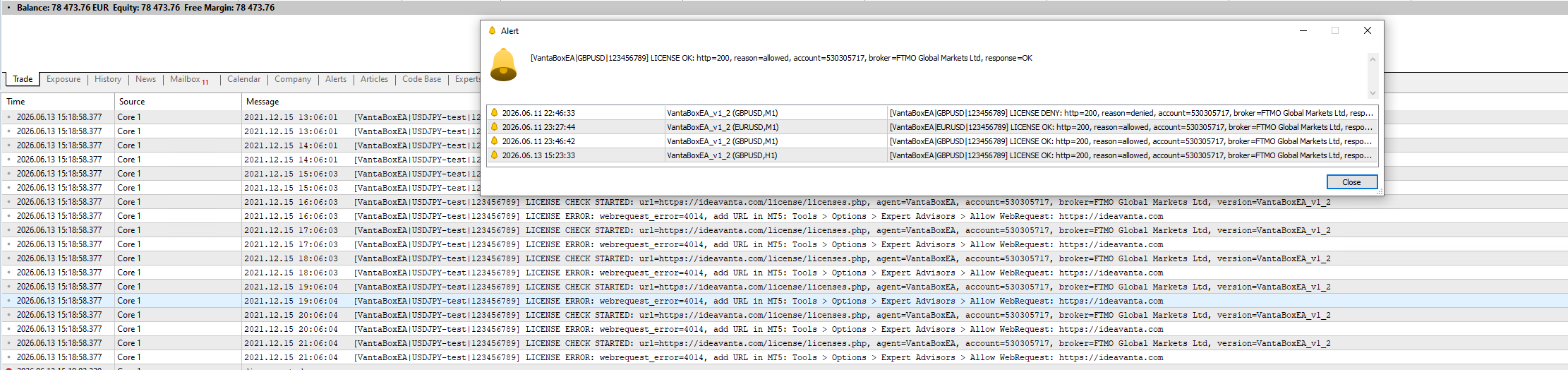
Strategy Tester: MT5 does not allow WebRequest inside the tester. Version 1.3 therefore shows
TESTER MODE / network check unavailable and allows historical testing without a server log entry. On a normal chart, the license check is required.Choose an instrument
Tested pairs and recommended settings
VantaBox EA has been tested on USDJPY, GBPUSD, and XAUUSD. Each instrument needs its own box time window. Use an M1 chart. All times below use the broker server time.
Do not copy the time settings from one pair to another. Each instrument has its own tested box window.
USDJPY
Low-risk mode: 1% of account
US Dollar / Japanese Yen
Two USDJPY versions have been tested. Choose one complete version and do not mix their settings.
USDJPYVersion 1
Longer box windowTIME
Range Start03:00
Range End06:00
Delete Orders20:55
Close Position20:55
RANGE SIZE
Minimum Range0.0%
Maximum Range0.6%
USDJPYVersion 2
Box ends at 05:00TIME
Range Start03:00
Range End05:00
Delete Orders22:00
Close Position22:00
RANGE SIZE
Minimum Range0.0%
Maximum Range1.0%
GBPUSD
Low-risk mode: 1% of account
British Pound / US Dollar
GBPUSDRecommended window
Tested setupTIME
Range Start04:05
Range End11:10
Delete Orders18:00
Close Position18:00
RANGE SIZE
Minimum Range0.0%
Maximum Range0.95%
XAUUSD
High-risk instrument
Gold / US Dollar
XAUUSDRecommended window
Use extra careTIME
Range Start03:05
Range End06:05
Delete Orders18:55
Close Position18:55
RANGE SIZE
Minimum Range0.15%
Maximum Range0.85%
More settings are coming
More pairs and time windows will be published later. Proper testing needs a large amount of historical data and takes time, so new settings are added only after they have been checked.
A suggested 1% risk does not guarantee profit or prevent drawdown. Before live trading, test the settings in Strategy Tester and on a demo account with your broker.
EA settings
Every setting in simple words
Each field is explained briefly: what it does, why it is needed, and what value is normally used.

01
RISK - risk and Stop Loss
Controls the position size and possible loss.
RiskModeHow the risk is calculated.
Normally: Fixed money amountPercent uses a percentage of the balance. Fixed money amount uses a fixed cash amount. Fixed lot always uses the same lot size. For a clear cash risk, use Fixed money amount.
RiskValueThe risk size.
Example: 20The meaning depends on RiskMode: 20 means $20, 2.0 means 2%, and 0.10 means a 0.10 lot.
StoplossModeWhere to place Stop Loss.
Normally: Opposite sideOpposite side of the box places the stop on the other side of the box. Percentage uses only part of the box height.
StoplossPercentageStop Loss size as a percentage of the box.
Normally: 100Used only when StoplossMode = Percentage. 100% means the full box. 50% means half of the box.
02
TIME - trading times
All times use the broker server clock, not your computer clock.
RangeStartHourHour when the box starts.
Example: 3From this time, the EA begins collecting the highest and lowest price.
RangeStartMinuteMinute when the box starts.
Example: 0Used together with RangeStartHour. Values 3 and 5 mean a 03:05 start.
RangeEndHourHour when the box ends.
Example: 5After this time, the EA checks the box and prepares the orders.
RangeEndMinuteMinute when the box ends.
Example: 0Used together with RangeEndHour.
DeleteOrdersHourHour when pending orders are removed.
Example: 22If Buy Stop and Sell Stop have not opened a trade, the EA removes them at this time.
DeleteOrdersMinuteMinute when pending orders are removed.
Example: 0Used together with DeleteOrdersHour.
ClosePositionHourHour when an open position is closed.
Example: 22This prevents the trade from staying open after the selected time.
ClosePositionMinuteMinute when an open position is closed.
Example: 0Used together with ClosePositionHour.
Important: attach the EA before RangeStart. If it is restarted or its settings are changed after the box starts, it waits for the next trading day.
03
RANGE SIZE - box size filter
Skips boxes that are too small or too large.
MinimumRangeMinimum box size as a percentage of price.
Normally: 0.0If the box is smaller, the EA skips that day. A value of 0 disables the minimum limit.
MaximumRangeMaximum box size as a percentage of price.
Example: 1.0If the box is larger, the EA does not trade because the range is considered too wide.
04
BREAKEVEN - protect an open trade
Moves Stop Loss after price moves into profit.
UseBreakevenEnable breakeven.
Normally: falsetrue lets the EA move Stop Loss. false keeps the original Stop Loss.
BreakevenTriggerWhen to move Stop Loss, measured in R.
For +1R: 1.01.0 means price has moved into profit by the same distance as the original risk. This is +1R.
BreakevenBufferSmall profit added to breakeven.
Example: 0 or 0.050 places the stop at the entry price. 0.1 locks about +0.1R and may cover part of the trading costs.
Breakeven moves the stop once. It is not a trailing stop and does not keep following price.
05
DYNAMIC RISK - automatic risk changes
An optional mode that changes risk and Stop Loss based on box size.
UseDynamicRiskEnable dynamic risk.
Recommended for beginners: falseWhen true, the four settings below are used. If you always want the same risk, leave it false.
SmallBoxThresholdBox size considered small, in pips.
Example: 35If the box is not larger than this value, risk is multiplied by SmallBoxRiskMultiplier.
SmallBoxRiskMultiplierHow much to increase risk for a small box.
Example: 1.51.5 changes a $20 risk into $30. Use this carefully.
BigBoxThresholdBox size considered large, in pips.
Example: 60When the box reaches this size, BigBoxStoplossPercent is used.
BigBoxStoplossPercentStop Loss for a large box, as a percentage of its height.
Example: 5050 places the stop at half of the box instead of the full opposite side.
06
PROP FIRM - extra controls
Options for prop firm rules and small execution adjustments.
EntryDelayMinutesDelay before placing orders after RangeEnd.
Normally: 00 means immediately. 5 means wait five minutes after the box ends.
StoplossOffsetMaxPipsExtra Stop Loss distance.
Normally: 0Moves the stop farther away from the box by the selected number of pips.
ClosingTimeOffsetMove the closing time by a number of minutes.
Normally: 0A positive number closes later. A negative number closes earlier than ClosePosition.
CloseAtEquityClose trades when account equity reaches this amount.
Normally: 0This is the total account equity, not the profit amount. 0 disables this option.
07
DAY - trading days
Choose which weekdays the EA is allowed to trade.
TradeMondayTrade on Monday.
true / falsetrue means trade. false means skip the day.
TradeTuesdayTrade on Tuesday.
true / falsetrue means trade. false means skip the day.
TradeWednesdayTrade on Wednesday.
true / falsetrue means trade. false means skip the day.
TradeThursdayTrade on Thursday.
true / falsetrue means trade. false means skip the day.
TradeFridayTrade on Friday.
true / falsetrue means trade. false means skip the day.
08
OTHER - general settings
Order identification, limits, and chart information.
MagicNumberNumber used to identify the EA's orders.
Normally: do not changeDifferent strategies on the same account should use different numbers. The same Magic Number on different accounts is not a problem.
BoundaryToleranceEntry tolerance near the box edge, in pips.
Normally: 0.5Helps open a position if price is already very close to, or slightly past, the box edge when orders are placed.
MaxLotSizeMaximum allowed lot size.
Example: 10Protects against a very large position caused by bad symbol data or a very tight Stop Loss.
NotesYour own note.
Can be left emptyYou can enter the setup name, pair, or account. It does not change the trading logic.
ShowDashboardShow information on the chart.
Normally: trueDisplays the box, license status, and current EA status.
09
ACCESS - license settings
These values are already configured. Normal users should not change them.
LicenseCheckEnabledEnables the license check.
Do not change: trueIt must stay true for live or demo account use.
LicenseServerUrlIdeaVanta license server address.
Do not changeThe EA sends the account number here to check access.
LicenseAgentIdProduct name on the license server.
Do not change: VantaBoxEAIt tells the server that VantaBox EA is being checked.
LicenseCheckIntervalMinutesTime between license checks.
Do not change: 6060 means one check every hour.
LicenseAllowNetworkGraceAllow temporary operation during an internet problem.
Normally: trueIf the license was recently approved, a short network problem will not immediately stop a new session.
LicenseNetworkGraceHoursNumber of hours allowed during a network problem.
Normally: 24This works only after a previous successful license check.
LicensePopupAlertsShow license notifications.
Normally: trueHelps you quickly see OK, DENY, or a connection error.
LicenseFileLogEnabledSave license checks to a file.
Normally: trueUseful when troubleshooting a user problem.
LicenseLogFileNameName of the license log file.
Do not changeThere is no need to change it. The file is created in the terminal Files folder.
10
VISUAL - box appearance
Changes only the chart display, not the trading strategy.
ShowBoxVisualShow the box on the chart.
Normally: truefalse hides the rectangles, but the trading logic continues to work.
KeepPreviousBoxesKeep old boxes on the chart.
Normally: trueUseful for reviewing previous trading days.
FillBoxVisualFill the box with color.
Normally: truefalse shows only the box border.
FormingBoxColorColor of the box while it is forming.
Choose a clear colorShows the current range before RangeEnd.
PassedBoxColorColor of a box that passed the size filter.
Default: greenThe EA is allowed to trade this box.
SkippedBoxColorColor of a skipped box.
Default: redShows that the range failed the MinimumRange or MaximumRange filter.
BoxBorderWidthBox border thickness.
Normally: 1This changes only the appearance.
Risk examples
Fixed $20 riskRiskMode: Amount
RiskValue = 202% of balanceRiskMode: Percent
RiskValue = 2.0Fixed lot sizeRiskMode: Fixed lot
RiskValue = 0.10The real cash risk may be slightly different because of the broker's minimum lot, lot step, commission, and rounding.
How it works
What the EA does
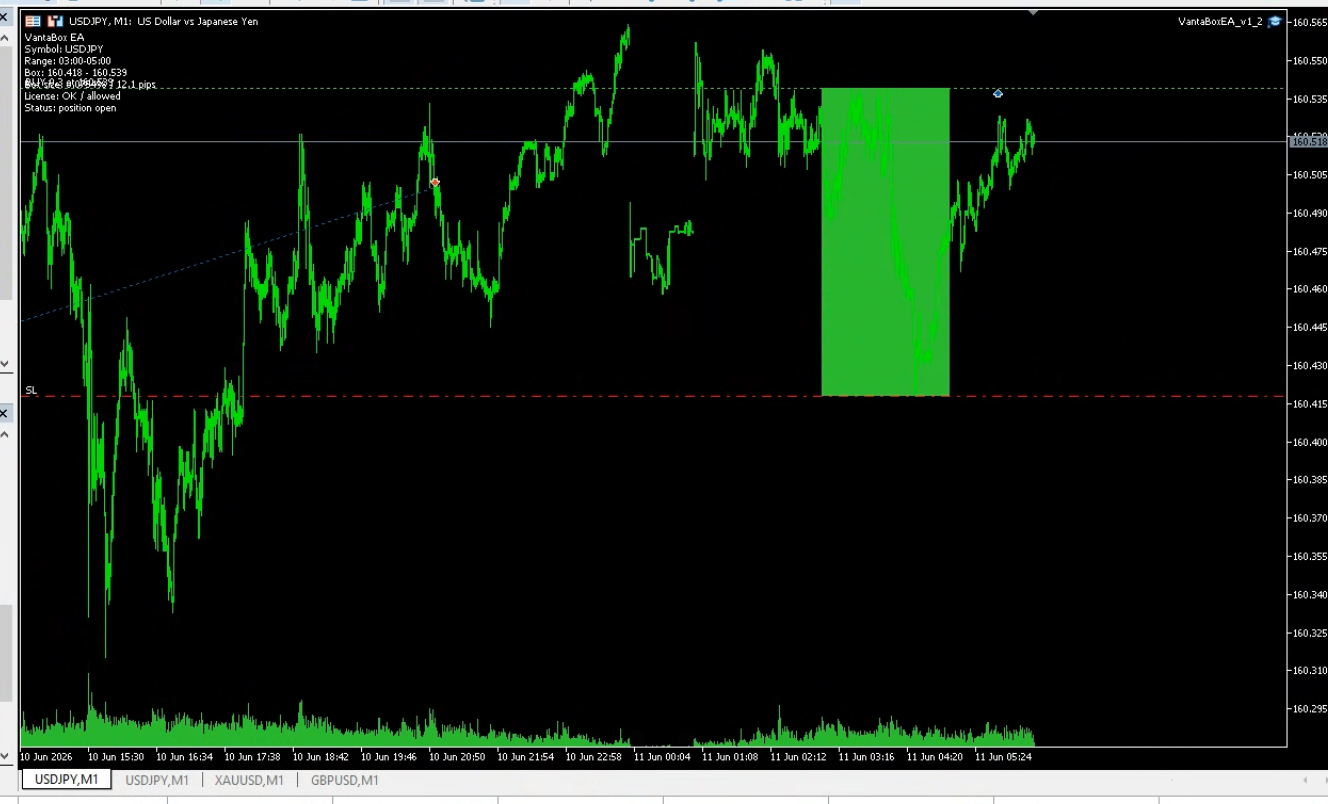
- Builds the boxCollects the highest and lowest price between RangeStart and RangeEnd.
- Checks the box sizeSkips a range that is too small or too large.
- Places two ordersBuy Stop above the box and Sell Stop below it.
- Keeps one directionAfter one position opens, the opposite pending order is removed.
- Ends the daily sessionRemoves pending orders and closes the position at the selected times.
Important rules
What you should remember
If this symbol already had a position, order, or trade today, a new entry is blocked regardless of Magic Number.
After a settings change, the current box is removed and the EA waits for the next trading day.
Different spreads may cause Buy Stop or Sell Stop to open at slightly different times.
If the license ends during an active daily session, the EA continues managing the position until the session is finished.
Troubleshooting
Common messages and solutions
auto trading disabled by client
Enable Algo Trading and allow algorithmic trading in the EA properties.
LICENSE ERROR / webrequest
Add https://ideavanta.com under Tools -> Options -> Expert Advisors -> Allow WebRequest.
LICENSE DENY
The trading account is not registered, the license was revoked, or it has expired. Contact the administrator.
Entry blocked: symbol already has today's activity
This symbol already had a trade or order today. The EA will continue on the next trading day.
Attached after today's range start
The EA was added after the box started. Leave it on the chart and wait for the next trading day.
TESTER MODE
This is normal in Strategy Tester. MT5 blocks the online license request there, but historical testing still works.
Setup checklist